My Dell, HP, and Lenovo BIOS password and settings scripts all accept the BIOS password as a plain-text parameter. This keeps the scripts simple and broadly compatible, but it means that how you deliver the password to the script is also how you secure the password. This post covers how to do that safely under Configuration Manager and task sequences, and how the built-in CMS support added in version 2.3.0 makes it easier.
The scripts can be downloaded from my GitHub. https://github.com/ConfigJon/Firmware-Management
Note
The CMS encryption described here is also the foundation for the Intune BIOS management scripts, which require it rather than offering a plain-text option. This series is the shared groundwork for both delivery models.
Plain Text Passwords
Every vendor’s BIOS interface needs the actual password at the moment of the call. So the plain-text password must exist in process memory at runtime. No amount of encryption changes that. The goal is therefore not “never have plain text”, it is keeping plain text out of everywhere else.
Where the password can leak
| Exposure | Risk |
|---|---|
| Command line | The arguments of a “Run Command Line” or “Run PowerShell Script” step are recorded in smsts.log and the task sequence execution history. |
| Logs | The scripts themselves never log the password (only generic messages like “Attempt to change the existing Supervisor password”). |
| Console / database | Plain task sequence or collection variables are visible in the console. |
| At rest | A plain-text password in the package source, a .txt file, or the task sequence XML. |
| In memory | Anything running as SYSTEM or admin on the device could capture it during the brief window it is in use. |
Why not SecureString and PSCredential?
PowerShell flags the plain-text parameters, but switching the parameter types would accomplish very little in this scenario:
- To produce a SecureString unattended you have to start from plain text or include an encryption key. This moves the problem rather than solving it.
- The BIOS APIs require a plain text string, so you would convert the SecureString right back to plain text.
Why not a portable, self-contained password file?
A common request is a single encrypted password file with no certificate to pre-install. An example of this is HP’s HPQPswd utility, which produces a file that the HP BIOS Configuration Utility then consumes. It is an appealing model, so why isn’t it the recommendation here?
Because every scheme of this kind has to answer one question; where does the decryption key live?
| You can have… | …but you give up | Example |
|---|---|---|
| Self-contained + portable | actually secure | classic HPQPswd |
| Portable + secure | self-contained (needs a key in a store) | the CMS approach below |
A file that is both self-contained and portable (one that any copy of the tool can decrypt on any machine with nothing else supplied) can only do so because the key (or the algorithm that derives it) is embedded in the tool itself. That is obfuscation, not encryption. HPQPswd gets away with it only because the BIOS Configuration Utility is a closed-source binary that hides the embedded key behind compiled code (and even so, the format has been publicly reverse-engineered. The AES-256 key lives inside the utility itself, and researchers have demonstrated decrypting the files).
These scripts are open source. If they implemented the same model, the encryption key and algorithm would be published in the repo alongside them. Anyone who obtained the encrypted file could decrypt it by reading the script. It would stop someone from opening the file in Notepad and nothing more. (Notably, HP itself has moved away from this model toward Sure Admin (public-key, signed payloads) and the industry direction is toward proper PKI.)
The CMS approach below sidesteps the whole dilemma by separating the two pieces: the encrypted file is portable and safe to ship anywhere, while the decryption key is provisioned out-of-band into the certificate store.
CMS encryption
PowerShell’s built-in CMS (Cryptographic Message Syntax) cmdlets let you encrypt the password once to a certificate’s public key. Only devices holding the matching private key can decrypt it. This works fully offline, in both Windows PowerShell 5.1 and PowerShell 7, and a single certificate can cover the whole fleet.
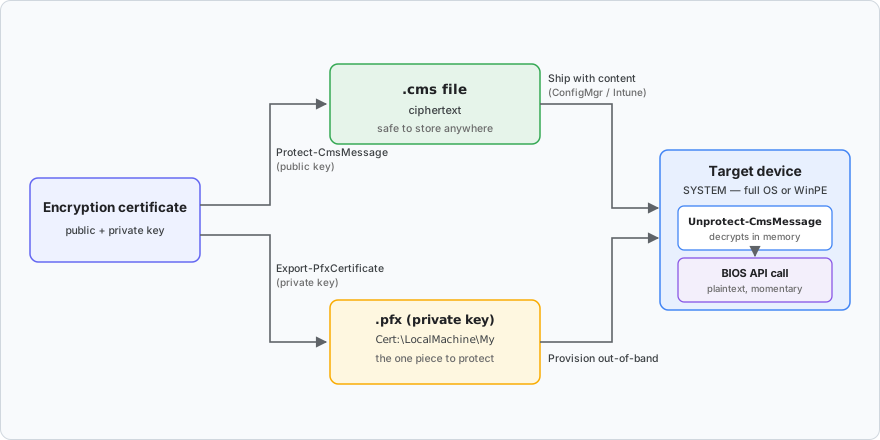
1. Create a document-encryption certificate (once)
Use your enterprise PKI’s Document Encryption template (EKU 1.3.6.1.4.1.311.80.1) if you have one, or generate a self-signed certificate for testing.
For a deeper walkthrough of this certificate - self-signed versus enterprise PKI, building the template, and the full distribution, rotation, and removal lifecycle - see Document Encryption Certificates for BIOS Password Management.
$cert = New-SelfSignedCertificate -Subject "CN=BIOS Password Encryption" `
    -KeyUsage KeyEncipherment,DataEncipherment -Type DocumentEncryptionCert `
    -CertStoreLocation Cert:\CurrentUser\My -KeyExportPolicy Exportable
Export-Certificate -Cert $cert -FilePath .\BiosEnc.cer # public key (for encrypting)
# Export the .pfx (private key) separately and protect it - this is what devices need.
2. Encrypt the BIOS password (once, on an admin workstation)
Protect-CmsMessage -To .\BiosEnc.cer -Content 'P@ssw0rd!' -OutFile .\BiosPw.cms
BiosPw.cms is safe to store in your package source or content library; it’s ciphertext.
3. Deploy the certificate’s private key to target devices
Import the .pfx into Cert:\LocalMachine\My on each device (via ConfigMgr or Intune). This is the one piece that must be protected and lifecycle-managed. That covers the full OS; if you decrypt during WinPE the key has to live somewhere else, which is covered in Key custody below.
Supplying the .cms to the script
With the certificate deployed and the password encrypted, the last piece is getting the script to read the .cms at runtime. There are two ways to do this, and which one you use depends only on your script version:
- Option A - the built-in
-...CmsFileparameters, for version 2.3.0 and later. This is the recommended path. - Option B - a small wrapper script, for anything older.
Both decrypt the password in memory and never expose it on a command line. Option A is simply Option B built into the script, so if you’re on a current version you can skip straight to it.
Option A (version 2.3.0+): the built-in CmsFile parameters
Starting with version 2.3.0, every password parameter has a matching -...CmsFile parameter that takes the path to a .cms file. The script decrypts it in memory at runtime with Unprotect-CmsMessage (using the device’s store-resident private key) and uses the result exactly as if you had passed the plain-text parameter. The password never appears on the command line, in smsts.log, or on disk in plain text.
# Dell - set the admin password from a CMS file
Manage-DellBiosPasswords-WMI.ps1 -AdminSet -AdminPasswordCmsFile C:\Path\admin.cms

# HP - authorize a settings change with the setup password from a CMS file
Manage-HPBiosSettings-WMI.ps1 -SetSettings -SetupPasswordCmsFile C:\Path\setup.cms

# Lenovo - authorize a settings change with the supervisor password from a CMS file
Manage-LenovoBiosSettings.ps1 -SetSettings -SupervisorPasswordCmsFile C:\Path\supervisor.cms
A few notes:
- Every plain-text password parameter has a CMS twin:
-OldAdminPasswordCmsFile,-PowerOnPasswordCmsFile,-SystemManagementPasswordCmsFile, etc. - The “old password” parameters accept more than one file, just like their plain-text counterparts. For example
-OldAdminPasswordCmsFile file1.cms,file2.cms. - Specifying both the plain-text and the CMS version of the same password (for example
-AdminPasswordand-AdminPasswordCmsFile) is rejected, so there is no ambiguity about which one wins. - The matching certificate’s private key must be present in the certificate store of whatever context runs the script. See Key custody below.
Option B: the wrapper script (for older versions)
If you are running a version of the scripts older than 2.3.0, you can get the same protection using a small wrapper combined with the “Run PowerShell Script” step. It decrypts in memory and passes the value in-process, so the password never appears on a command line.
# Wrapper.ps1 - deployed alongside BiosPw.cms and the management script
$pw = Unprotect-CmsMessage -Path "$PSScriptRoot\BiosPw.cms" # uses the device's private key automatically

& "$PSScriptRoot\Manage-LenovoBiosSettings.ps1" -SetSettings -SupervisorPassword $pw

Remove-Variable pw
[System.GC]::Collect()
The built-in -...CmsFile parameters do exactly this internally, so on 2.3.0 and later you no longer need the wrapper.
Key custody: full OS vs WinPE
CMS decryption always needs the private key to be available to the process. There is no way to point Unprotect-CmsMessage at a loose .pfx or key file; it looks the key up in the certificate store. Where that store lives depends on the phase:
- Full OS - import the
.pfxintoCert:\LocalMachine\Myonce. Running as SYSTEM, the script finds it automatically. This is the standard path. - WinPE - the certificate store is an empty RAM disk that does not persist, so the document-encryption certificate (with its private key) has to be placed in the boot image at media-build time. See the Configuration Manager boot image section of Document Encryption Certificates for BIOS Password Management for one way to do that. After that, decryption in WinPE works exactly like it does in the full OS.
Cert:\LocalMachine\My covers both interactive-elevated and SYSTEM or task-sequence execution. (Cert:\CurrentUser\My also works for a quick test in your own session.)
What this protects against (and what it doesn’t)
CMS solves some problems and leaves others in place.
What it protects against:
- The password never appears on a command line, in
smsts.log, in a console or database variable, or on disk in plain text (the common leak points from the table earlier). - A non-administrator who gets hold of a
.cmsfile cannot decrypt it, even on a device that has the certificate. The private key inCert:\LocalMachine\Myis restricted to SYSTEM and the local Administrators group, andUnprotect-CmsMessagehas to use that key, so a standard user’s attempt fails.
What it does not protect against:
Caution
Local administrators and SYSTEM on a device can recover the password. Anyone with that level of access can run
Unprotect-CmsMessageagainst any.cmsfile they can reach. Additionally, the plaintext is in process memory whenever the script runs. CMS keeps the password away from non-admins, the network, logs, and disk. It does not hide it from a device’s own administrators. In practice the BIOS password is only as protected as local admin is across your fleet.
A few notes on implementing this feature:
- Deploy the key to
Cert:\LocalMachine\My, not a user’s store, and import it non-exportable. Placing it in a user’sCert:\CurrentUser\My, or loosening the private key’s permissions, would let a non-admin decrypt. - The
.pfxand its password are the master secret. Anyone who obtains both can decrypt every.cmsyou have produced, so protect your deployment content and source locations accordingly. - In WinPE, the boot image contains the private key. Treat that image as a sensitive, and restrict access to it like the
.pfx. - Keep the certificate dedicated to this purpose. It is an encryption-only certificate (Document Encryption EKU). It cannot sign code, authenticate, or serve TLS, and it is not a trust anchor, so its presence does not broaden a device’s attack surface. Its one capability is decrypting CMS data encrypted to it, so do not reuse it for other secrets, or those become recoverable by every device administrator as well.
Hidden Configuration Manager variables
If a certificate is more than you want, you can mark a collection or device variable as “Do not display this value in the Configuration Manager console.” The value is masked in the console and stored encrypted in the database, then referenced in the step (for example -SupervisorPassword "%Password%"). For examples of this, refer to the standalone vendor BIOS password management posts.
Warning
This protects the console and database, but the expanded value can still surface in
smsts.logwhen used on a command line. Treat the log as sensitive, restrict access to it, and clear the variable when finished. The CMS approach above avoids this entirely and is preferred where the data is highly sensitive.