This post was updated on September 29th, 2026.
This is the third deep dive in the Managing BIOS with Intune series. It applies the same detection-and-remediation model from the password management post to BIOS settings. The goal is to keep devices at a desired BIOS configuration, detecting drift, and reporting on it.
The deployment mechanics (creating the remediation, running as SYSTEM in 64-bit, assigning to a device group) are identical to the password post, so this post focuses on what’s different about settings: defining the desired state, the per-setting marker model, and the dependency on password management (and how to opt out of it).
Defining the desired state
Where password management is driven by a target version, settings management is driven by a desired-state hashtable embedded in the script body. Each entry is a BIOS setting name and the value it should have:
$DesiredSettings = @{
    'WakeOnLan'      = 'LanOnly'
    'Virtualization' = 'Enabled'
    'SecureBoot'     = 'Enabled'
}
Names and values must be exact:
- Use matching readback values. The comparison is an exact string match against the value the BIOS reports back. Don’t use
1/0orOn/Offif the BIOS reportsEnabled/Disabled. - Match the setting name exactly. Names are case-sensitive on some models. Use the exact attribute name the firmware reports.
The reliable way to get both the names and their values is the GetSettings mode of the existing per-vendor scripts. The scripts enumerate every setting the device exposes, along with its current and possible values. See the per-vendor settings posts for that: Dell, HP, and Lenovo.
Important
The desired-state hashtable lives in both scripts of the pair. Because there’s no shared module, the detection and remediation scripts each carry their own
$DesiredSettings, and they must be identical. The detection script hashes the desired state to notice when you’ve edited it; if the two halves disagree, detection and remediation will be working from different configurations.
An empty $DesiredSettings is valid and safe. The device reports COMPLIANT: settings ... managed=0 (no settings configured in script body) and does nothing. Nothing is enforced until you add entries.
Profiles for multiple deployments
The -Profile parameter (default baseline-v1) is a label for the desired-state set a device should be running. It serves two purposes:
- It records, in the marker, which configuration was last applied.
- It lets you run different baselines for different groups. Deploy one remediation with
$DesiredSettings= your standard config and-Profile baseline-v1to most devices, and a separate remediation with a different config and-Profile lab-v1to a lab group.
When you redeploy with a different profile name, detection reports NONCOMPLIANT: settings profile-mismatch expected=baseline-v1 actual=legacy-v3, and the remediation re-evaluates everything against the new desired state and refreshes the marker. Like the desired state, the profile name has to match across the detection and remediation scripts of a pair.
One baseline per device
The multi-deployment model above assumes each device is in scope for exactly one settings remediation. That matters, because every settings remediation, whatever its profile, shares one top-level marker at …\FirmwareManagement\BIOSSettings, whose single Profile value each run overwrites. Two settings remediations targeting the same device contend for it.
The per-setting markers themselves don’t collide as long as the two remediations manage different settings. Detection only evaluates the settings in its own $DesiredSettings and ignores the rest. The shared top-level Profile is the problem:
- If the two remediations use different profile names, they compete. Each run restamps the shared
Profile, so the other’s detection then seesprofile-mismatch, remediates, and stamps it back. Both stay permanentlyNONCOMPLIANTand re-run every cycle, even when every actual setting is already correct. - If they manage the same setting with different values, that setting flip-flops on every cycle regardless of profile.
Caution
Don’t assign two BIOS settings remediations to the same device. They share one
Profilemarker and will conflict. They will both report non-compliant and rewrite the BIOS every cycle.
To layer configurations (TPM settings for everyone plus extra settings for a subset) don’t stack two remediations. Build a superset profile for the subset (the common settings plus the extras), assign it to the subset, and exclude the subset from the base remediation. Each device still ends up with exactly one settings remediation, and one desired-state baseline.
Per-setting markers
A snapshot-style “all or nothing” model breaks down with multiple hardware models, where a setting that exists on one model doesn’t exist on others. To avoid that, each managed setting gets its own marker under …\BIOSSettings\Settings\<SettingName>, tracking that setting independently (the full marker layout is in the reference and troubleshooting post). This lets each setting reach a stable state on its own:
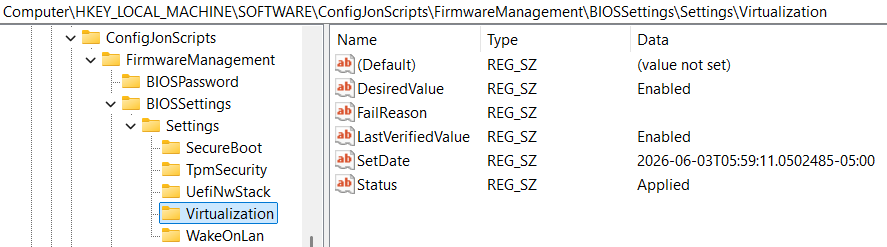
- Applied - the setting was set and verified.
- Unsupported - the device doesn’t expose this setting (no row returned). This is determined live on every run and is not cached, so a future firmware update that adds the setting gets picked up automatically.
- Failed - the setting exists but the apply or readback didn’t take. This is cached, so the remediation doesn’t loop forever on a setting the device won’t accept.
A cached Failed is cleared in two ways: editing $DesiredSettings (which changes the desired-state hash and re-opens everything), or the -RetryFailedAfterDays parameter. Setting this parameter to 30 means a failed setting is retried after that many days. This is useful for picking up settings that a firmware update later makes settable. Like the other parameters, it has to match across both scripts.
What detection reports
Detection compares each desired setting to the BIOS-reported current value and outputs a single line with the counts:
COMPLIANT: settings profile=baseline-v1 managed=10 unsupported=2 failed=0 drift=0
COMPLIANT: settings profile=baseline-v1 managed=10 unsupported=2 failed=1 drift=0 blocked=1 blocked-reasons=access-denied
NONCOMPLIANT: settings profile=baseline-v1 managed=10 unsupported=0 failed=0 drift=2 names=WakeOnLan,Virtualization
NONCOMPLIANT: settings profile-mismatch expected=baseline-v1 actual=legacy-v3
DEGRADED: settings pw-marker-missing (cannot remediate without password)
DEGRADED: settings bios-query-failed (Dell BIOS attribute namespace unreachable)
managed is how many of your desired settings the device actually exposes, unsupported is how many it doesn’t, failed is how many are in the cached-failed state, and drift is how many are out of compliance, with names listing them. The dashboard tells you not just that a device drifted but which settings did. The blocked= and blocked-reasons= fields on the second line are covered next.
When a setting can’t be applied
Not every failure is the same. A setting can fail because the hardware genuinely won’t take it: the value is invalid for that model, or the setting isn’t really settable. A setting could also fail because something is blocking management that a person could fix: the BIOS rejected the write as unauthorized (a wrong or missing password), or a transient error threw mid-write. The first kind isn’t actionable. The second kind is worth knowing about.
To make that distinction visible, each per-setting marker records a FailReason alongside its Failed status, and detection tallies the ones that represent blocked management into two extra fields on the output line:
blocked=N- how many cached-failed settings failed for a reason that points at blocked management rather than incompatible hardware.blocked-reasons=...- the distinct reasons behind that count (for exampleaccess-denied,write-threw,save-failed), comma-separated.
The reasons that count as blocked are authorization failures (access-denied) and errors thrown while writing, saving, or reading a setting back (write-threw, save-threw, save-failed, query-failed). The reasons that stay quiet (because retrying won’t help) are an invalid value (invalid-param), an unsupported setting (not-supported), and a readback that didn’t match (readback-mismatch, which on some platforms is just a reboot-pending value that will settle on its own).
Important
blocked=is visibility only. A blocked setting does not change the compliance verdict. The device staysCOMPLIANTand detection still exits0, so the remediation isn’t re-triggered. Setting the device to non-compliant would make Intune re-run the remediation every cycle, re-sending the same rejected write (and, in the password case, the same wrong password). This is exactly the retry churn the cached-failed state exists to prevent. Recovery stays governed by-RetryFailedAfterDays; pair it with a short window when you want a blocked setting retried automatically.
What remediation does
When detection reports drift, the remediation unlocks the BIOS, applies the drifted and new settings, verifies each by reading it back, and writes a per-setting marker for each. Its summary line:
REMEDIATED: settings profile=baseline-v1 applied=2 compliant=8 unsupported=1 failed-cached=0
SKIPPED: settings profile=baseline-v1 already-compliant (managed=10 compliant=10 unsupported=0 failed-cached=0)
FAILED: settings profile=baseline-v1 applied=1 failed=1 failed-names=SecureBoot
When some settings apply and others fail, the line reports both: applied counts the ones that took, and failed-names lists the ones that didn’t, by name. The device stays non-compliant so it remains flagged for follow-up.
BIOS passwords
The settings management script assumes, by default, that a BIOS password is set. In this case, writing a BIOS setting requires unlocking the BIOS with the password first. The settings remediation reads the password marker (read-only) to learn which password version the device is on, then uses its own embedded copy of that CMS payload to unlock before writing.
A few notes on this behavior:
- The settings remediation carries the password payload too. You build it with
Build-IntunePayload.ps1exactly like the password remediation, and its payload window needs to include whatever password version your devices are actually on. - Password management has to be in place first. If the password marker is missing, the settings remediation can’t unlock and reports
FAILED: settings pw-marker-missing (cannot remediate without password). Detection reportsDEGRADED: settings pw-marker-missing (cannot remediate without password)so it’s visible before remediation even runs.
A couple of related states round this out: FAILED: settings pw-version-not-in-payload means the device’s password version isn’t in the settings remediation’s payload (rebuild it to include that version), and FAILED: settings cms-decrypt-failed means the certificate couldn’t decrypt the payload (the same certificate troubleshooting as the certificate post).
Settings without a BIOS password. If devices have no BIOS password set, both settings scripts take a -NoPassword switch (off by default). When enabled, detection drops the password-marker dependency and the remediation writes each setting unauthenticated (no payload, no certificate, no CMS decryption) so none of the states above apply. Enable the switch in both the detection and remediation script bodies before deploying (Intune remediations can’t take command-line parameters), and keep it consistent across the pair. Unauthenticated runs are tagged mode=nopassword on the output line so they stand out on the dashboard.
Caution
-NoPasswordassumes the device has no BIOS password. Don’t combine it with BIOS password management on the same device. If a password is set, the run is reportedFAILED.
Manufacturer notes
The logic is the same across all three vendors, with the same two coexistence behaviors as password management:
- HP Sure Admin and Lenovo certificate authentication devices are detected and reported incompatible (
NONCOMPLIANT: settings sure-admin-enrolled …/cert-auth-enabled …), and the remediation skips cleanly (SKIPPED: settings sure-admin-incompatible …/cert-auth-incompatible …). Reading settings still works on those devices; writing them requires signed payloads, which these scripts don’t support.
Note
Lenovo applies settings in a single batched commit. Lenovo stages each setting and then commits them all with one
SaveBiosSettingscall. If that commit fails, every staged setting in the batch is lost, and the remediation reportsFAILED: settings save-failed status=AccessDenied profile=baseline-v1 staged=3. This is different from Dell and HP, where settings are applied individually.
Lenovo ThinkCentre and ThinkStation spellings. ThinkPad firmware reports most values as Enable / Disable, while ThinkCentre and ThinkStation firmware reports Enabled / Disabled for the same settings. The Lenovo pair handles this with a second table, $DesiredSettingsDesktop. On a desktop (Win32_ComputerSystem.PCSystemType is anything other than 2) its entries are merged over $DesiredSettings before anything is compared or applied, so one remediation can cover a mixed ThinkPad and ThinkCentre fleet: the shared configuration goes in $DesiredSettings, and only the desktop spellings go in $DesiredSettingsDesktop. The table is empty by default.
$DesiredSettings = @{
    'SecureBoot' = 'Enable'      # ThinkPad spelling
}
$DesiredSettingsDesktop = @{
    'SecureBoot' = 'Enabled'     # ThinkCentre / ThinkStation spelling
}
Names that only one family exposes don’t need an override. A setting the device doesn’t report is counted as Unsupported and skipped, so ThinkPad-only and ThinkCentre-only names can sit side by side in $DesiredSettings. As with the main table, keep $DesiredSettingsDesktop identical in both scripts of the pair.
Reporting
Settings output uses the same single-line, leading-tag, key=value format as the password scripts. For a deeper dive into the reporting capabilities of the scripts (including integration with Azure Log Analytics) see Reporting on BIOS management with Intune.