This is the reference post for the Managing BIOS with Intune series. It is not part of the setup walkthrough. If you are deploying the solution, follow the deep-dive posts in order; come here when you need to look up a status line, understand the registry markers, decode a FailReason, or troubleshoot a device that isn’t behaving as expected.
The registry markers
A recurring remediation has to remember what it has done between runs, because the BIOS can only report whether a password is set, not which version. The scripts bridge that gap with registry markers under HKLM:\SOFTWARE\ConfigJonScripts\FirmwareManagement\.
Note
These keys are for record keeping only. They log what the scripts have done and what they intend to do; they never contain a password or any decrypted material. Everything here is written by the remediation scripts (running as SYSTEM) and read by both the detection and remediation scripts.
...\FirmwareManagement\BIOSPassword - the password marker. Written by the password remediation script; read by the password detection script, and read-only by both settings scripts so they know which password version to decrypt.
| Value | Type | Purpose |
|---|---|---|
CertThumbprint | String | Thumbprint of the certificate that encrypted the matching CMS payload, recorded so the device can resolve the right certificate at runtime. |
SetDate | String | ISO-8601 timestamp of the last successful write. |
Version | DWord | The password version currently applied to the device. 0 means the password has been cleared. |
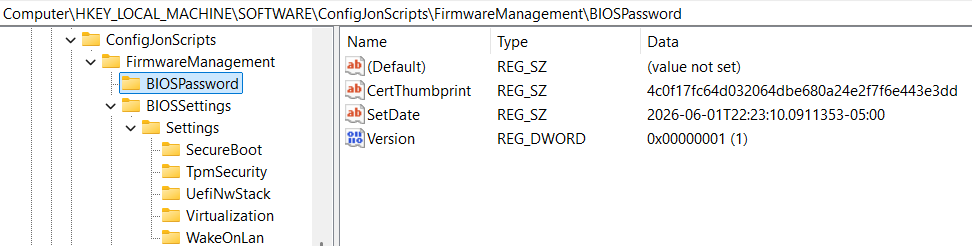
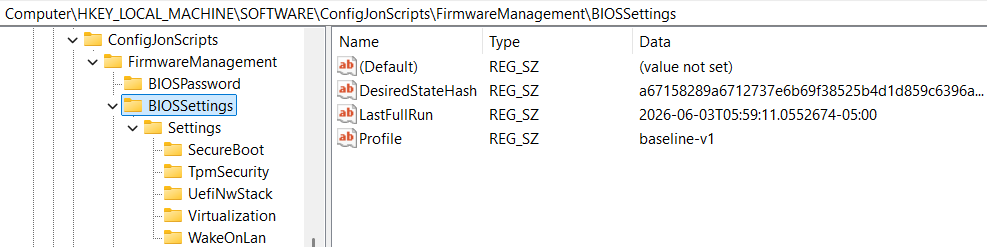
...\FirmwareManagement\BIOSSettings - the top-level settings marker. Written by the settings remediation script; read by the settings detection script.
| Value | Type | Purpose |
|---|---|---|
DesiredStateHash | String | A SHA-256 hash of the desired-settings table. When the script’s desired state is edited, the hash changes, which clears the cached “failed” state so previously failed settings are retried. |
LastFullRun | String | ISO-8601 timestamp of the last end-to-end settings remediation. |
Profile | String | The name of the settings profile last applied, so a profile change can be detected. |
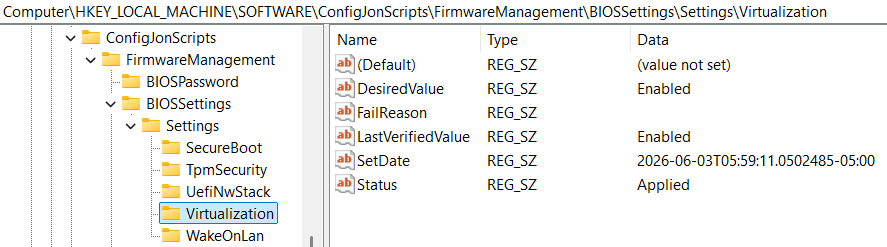
...\FirmwareManagement\BIOSSettings\Settings\<SettingName> - one subkey per managed setting. The setting’s name is used as the registry key name. This is how the scripts track each setting independently so that one unsupported or failing setting does not block the rest.
| Value | Type | Purpose |
|---|---|---|
DesiredValue | String | The value the script last attempted to set. |
FailReason | String | On a Failed entry, why it failed (access-denied, invalid-param, write-threw, etc.). Detection uses this to distinguish blocked management from incompatible hardware. Empty on an Applied entry. The full breakdown is in the FailReason values section below. |
LastVerifiedValue | String | The value the BIOS reported on the last run. |
SetDate | String | ISO-8601 timestamp of the last successful apply. |
Status | String | Applied or Failed. A Failed entry is cached so a permanently incompatible setting is not retried on every cycle; it is cleared automatically when the desired state changes or after a configurable retry window. |
Note
Statusis only ever written asAppliedorFailed. A setting the device doesn’t expose (Unsupported) is determined live on every run and is never cached, so a future firmware update that adds the setting gets picked up automatically.
If you ever need to force a device to start fresh, deleting the relevant key (BIOSPassword, BIOSSettings, or a single setting subkey) is safe. The next detection cycle will simply see “no marker” and the remediation will rebuild it.
Status-line dictionary
Every run prints one tagged status line as its last action, and the exit code follows from the tag. This is the complete catalog of what the scripts emit. Fields like v=N, profile=P, and the counts are filled in at runtime; <Vendor> is Dell, HP, or Lenovo.
The leading tag maps to an exit code the same way in every script:
| Tag | Script | Exit | Meaning to Intune |
|---|---|---|---|
COMPLIANT | Detection | 0 | Compliant - don’t remediate. |
NONCOMPLIANT / DEGRADED | Detection | 1 | Not compliant - run the remediation. |
REMEDIATED / SKIPPED | Remediation | 0 | Success (changed, or nothing to do). |
FAILED / DEGRADED | Remediation | 1 | Something went wrong. |
Password - detection
| Output | Meaning |
|---|---|
COMPLIANT: pw v=N set=true marker-ok | Marker matches the target and the BIOS password is set. |
COMPLIANT: pw v=N set=false marker-ok-cleared | Target is 0, the password is cleared, and the marker agrees. |
COMPLIANT: pw v=N set=false marker-clear-no-bios-pw | Target is 0 and no BIOS password is present. |
COMPLIANT: pw out-of-scope (not <Vendor>) | Wrong manufacturer; nothing to do. |
NONCOMPLIANT: pw v=- set=<bool> marker-missing | No marker found; needs an initial set or recovery. |
NONCOMPLIANT: pw v=N set=false bios-reset-detected | Marker says a password should be set, but the BIOS reports none (CMOS clear, dead RTC battery). |
NONCOMPLIANT: pw v=N set=true marker-version-drift expected=M | Marker is older than the target; needs a rotate. |
NONCOMPLIANT: pw v=N set=true marker-version-future expected=M | Marker is newer than the target; misconfigured deployment. |
NONCOMPLIANT: pw v=N set=true marker-needs-clear expected=0 | Target is 0 but a password is still set. |
NONCOMPLIANT: pw sure-admin-enrolled (INCOMPATIBLE - signed payloads required) | HP Sure Admin device; not manageable with a password. |
NONCOMPLIANT: pw cert-auth-enabled (INCOMPATIBLE - signed payloads required) | Lenovo certificate-auth device; not manageable with a password. |
DEGRADED: pw ... bios-query-failed (marker-only) | Couldn’t read the BIOS; reporting from the marker alone. |
Password - remediation
| Output | Meaning |
|---|---|
REMEDIATED: pw set v=N | Initial password set on a device that had none. |
REMEDIATED: pw reapplied v=N | Password re-set after a detected BIOS reset. |
REMEDIATED: pw rotated v=N->v=M | Rotated, unlocking with the marker version. |
REMEDIATED: pw rotated v=N->v=M via fallback (marker said v=X) | Marker was stale; unlocked using the fallback list. |
REMEDIATED: pw rotated v=N->v=M via fallback (marker was missing) | No marker; recovered using the fallback list. |
REMEDIATED: pw cleared (used v=N to unlock) | Password cleared (target 0). |
SKIPPED: pw v=N already current | Already at the target; nothing to do. |
SKIPPED: pw out-of-scope (not <Vendor>) | Wrong manufacturer. |
SKIPPED: pw sure-admin-incompatible (signed payloads required) | HP Sure Admin device; exits cleanly without retrying. |
SKIPPED: pw cert-auth-incompatible (signed payloads required) | Lenovo cert-auth device; exits cleanly without retrying. |
FAILED: pw misconfigured marker v=N > target v=M | Marker is ahead of the target; refuses to roll back. |
FAILED: pw drifted - no fallback password unlocked the BIOS (tried v=[...]) | Drifted further than the rolling window reaches; needs manual recovery. |
FAILED: pw bios-set-failed status=N (action=... v=M) | The BIOS rejected the write. |
FAILED: pw set-readback-mismatch v=N | The write reported success but the readback disagreed. |
FAILED: pw rotate v=N->v=M (WMI threw) | A WMI exception was thrown during the rotate. |
FAILED: pw init-not-supported-v1 (initial supervisor set requires SDBM) | Lenovo: can’t set an initial supervisor password (see the password post). |
DEGRADED: pw bios-query-failed - cannot determine current state | Couldn’t read the BIOS state to decide what to do. |
Settings - detection
| Output | Meaning |
|---|---|
COMPLIANT: settings profile=P managed=N unsupported=N failed=N drift=0 [blocked=N blocked-reasons=...] | In the desired state. The blocked= fields appear only when there are blocked-management failures. |
COMPLIANT: settings profile=P managed=0 (no settings configured in script body) | $DesiredSettings is empty; nothing is enforced. |
NONCOMPLIANT: settings profile=P managed=N unsupported=N failed=N drift=N names=... | One or more settings drifted; names= lists them. |
NONCOMPLIANT: settings profile-mismatch expected=P actual=Q | The profile name changed; everything is re-evaluated. |
NONCOMPLIANT: settings sure-admin-enrolled (INCOMPATIBLE - signed payloads required) | HP Sure Admin device. |
NONCOMPLIANT: settings cert-auth-enabled (INCOMPATIBLE - signed payloads required) | Lenovo cert-auth device. |
DEGRADED: settings pw-marker-missing (cannot remediate without password) | Password management isn’t in place yet. |
DEGRADED: settings bios-query-failed (... unreachable) | Couldn’t enumerate BIOS settings. |
(suffix) mode=nopassword | Appended to the line on a -NoPassword run. |
Settings - remediation
| Output | Meaning |
|---|---|
REMEDIATED: settings profile=P applied=N compliant=N unsupported=N failed-cached=N | Applied the drifted and new settings. |
SKIPPED: settings profile=P already-compliant (managed=N compliant=N unsupported=N failed-cached=N) | Nothing to do. |
FAILED: settings profile=P applied=N failed=N failed-names=... | Some settings wouldn’t take; failed-names= lists them. |
FAILED: settings pw-marker-missing (cannot remediate without password) | No password marker to unlock with. |
FAILED: settings pw-version-not-in-payload v=N | The device’s password version isn’t in this remediation’s payload. |
FAILED: settings cms-decrypt-failed v=N | The certificate couldn’t decrypt the payload. |
FAILED: settings save-failed status=... profile=P staged=N | Lenovo only: the batched commit was rejected. |
FAILED: settings save-threw profile=P staged=N | Lenovo only: the batched commit threw. |
SKIPPED: settings sure-admin-incompatible (signed payloads required) | HP Sure Admin device; exits cleanly. |
SKIPPED: settings cert-auth-incompatible (signed payloads required) | Lenovo cert-auth device; exits cleanly. |
FailReason values
When a setting can’t be applied, the per-setting marker records a FailReason alongside its Failed status. Detection sorts these into two groups. Blocked reasons point at something a person could fix (a wrong or missing password, or a transient error); detection tallies them into the blocked= and blocked-reasons= fields on its output line. Quiet reasons mean retrying won’t help, so they’re cached and stay off the output line.
| FailReason | Group | What it means |
|---|---|---|
access-denied | Blocked | The BIOS rejected the write as unauthorized (wrong or missing password). |
write-threw | Blocked | An exception was thrown while writing the setting. |
save-threw | Blocked | An exception was thrown while committing (Lenovo batched save). |
save-failed | Blocked | The commit returned a failure status (Lenovo batched save). |
query-failed | Blocked | An error was thrown reading a setting back. |
invalid-param | Quiet | The value is invalid for this setting on this model. |
not-supported | Quiet | The setting isn’t settable on this device. |
readback-mismatch | Quiet | The readback didn’t match. On some platforms this is just a reboot-pending value that settles on its own. |
set-failed | Quiet | A catch-all for an unclassified set failure. |
Important
blocked=is visibility only. A blocked setting does not change the compliance verdict. The device staysCOMPLIANTand detection still exits0, so the remediation isn’t re-triggered. Setting the device to non-compliant would make Intune re-run the remediation every cycle, re-sending the same rejected write (and, in the password case, the same wrong password). Recovery stays governed by-RetryFailedAfterDays; pair it with a short window when you want a blocked setting retried automatically.
Parameter quick-reference
These are the values you set directly in the script bodies before uploading (Intune remediations can’t take command-line parameters). Each one must match across the detection and remediation halves of a pair.
| Parameter | Default | Scripts | Purpose |
|---|---|---|---|
TargetVersion | 1 | Password | The password version the device should be at. 0 clears the password. |
Profile | baseline-v1 | Settings | A label for the desired-state set; also lets you run different baselines for different groups. |
RetryFailedAfterDays | 0 | Settings | Retry a cached-failed setting after this many days (0 = never on a timer; cleared only when the desired state changes). |
NoPassword | off | Settings | Manage settings on devices that have no BIOS password (writes unauthenticated). |
Troubleshooting
A device is stuck NONCOMPLIANT and re-runs every cycle, even though the settings look correct.
The usual cause is two settings remediations assigned to the same device. They share one top-level Profile marker and restamp it on every run, so each one’s detection sees profile-mismatch forever. Assign only one settings remediation per device; to layer configurations, build a superset profile and exclude the subset from the base remediation. See “One baseline per device” in the settings post.
Detection or remediation reports cms-decrypt-failed (or the cert can’t be found).
The encryption certificate isn’t usable on the device. Confirm the certificate is present in Cert:\LocalMachine\My with HasPrivateKey = True, and that the thumbprint embedded in the payload matches the deployed certificate. The verification steps are in the certificate post.
Settings remediation reports pw-marker-missing.
The settings scripts unlock the BIOS using the password marker that the password remediation writes. Deploy password management first, or, if the device has no BIOS password, enable -NoPassword in both settings scripts.
Settings remediation reports pw-version-not-in-payload.
The device’s current password version isn’t in the settings remediation’s embedded payload. Rebuild the settings remediation with Build-IntunePayload.ps1 so the payload window includes the version the device is actually on.
Password remediation reports misconfigured marker v=N > target.
The target version is lower than what’s already deployed to the device. The script refuses to roll back rather than guess. Raise TargetVersion to match (or exceed) the deployed version; don’t lower it.
Password remediation reports drifted - no fallback password unlocked the BIOS.
The device is further behind than the rolling window can reach, so none of the embedded versions unlock it. This needs manual attention. Widening the window on future rollouts reduces how often this happens.
A setting shows Failed in the registry but the value looks right in the BIOS.
This is usually a readback-mismatch that is really a reboot-pending value. It will often settle on its own after a reboot. Use -RetryFailedAfterDays to have it retried automatically.
The built remediation script is over 200 KB.
Build-IntunePayload.ps1 warns when the output approaches Intune’s per-script size cap. Narrow the rolling window (embed fewer password versions) to bring it back under.
Nothing shows up in the Intune console for the remediation. Check that the remediation runs as SYSTEM (not the logged-on user), that Run script in 64-bit PowerShell is set to Yes, and that the detection script actually ran on its schedule.
Where to go next
- Back to the series overview: Managing BIOS Passwords and Settings with Intune
- The deep dives: certificates, passwords, settings
- Reporting on results across all devices: Reporting on BIOS management with Intune