This post was updated on September 29th, 2026.
This is the second deep dive in the Managing BIOS with Intune series. The first post, Setting up BIOS password certificates in Intune, got the certificate onto devices and embedded the CMS-encrypted passwords into a deployable remediation script. This post details the password script logic and how to deploy the password scripts via an Intune remediation.
This post assumes you’ve completed the certificate post and have built a remediation script (with the payload embedded) plus its matching detection script.
Deploying the pair
BIOS password management is delivered as an Intune remediation (formerly “Proactive remediation”). An Intune remediation has two parts: a detection script and a remediation script. Intune runs the detection script on a schedule; if it reports non-compliant, Intune runs the remediation script.
Note
Remediations require an eligible license (Windows Enterprise E3/E5, Education A3/A5, or the Intune Suite / add-on). Enable remediations in Intune under Tenant administration > Connectors and tokens > Windows data > Windows license verification.
1. Set the target version in both scripts. The script decides what to do by comparing the device’s current password version against a TargetVersion. Intune remediations can’t take parameters, so you set it directly in each script’s parameter block before uploading. Open both the detection and remediation scripts and set the same value:
[int]$TargetVersion = 5
For a first deployment with a single password version, this is 1 (the script’s default). Both halves of the pair must use the same TargetVersion.
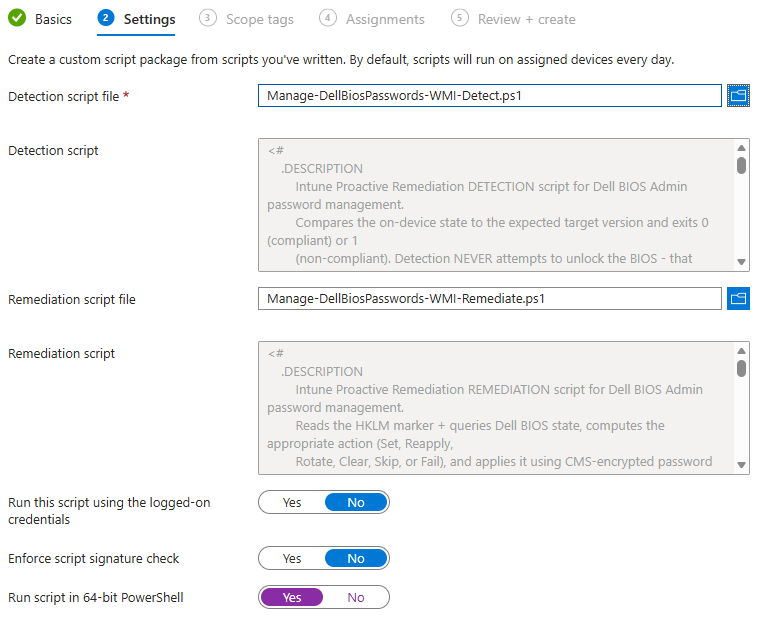
2. Create the remediation. In the Intune admin center, go to Devices > Scripts and remediations > Remediations and create a new remediation. Upload the detection script and the remediation script, then on the settings:
- Run this script using the logged-on credentials: No (runs as SYSTEM, which is required to read the BIOS, write the HKLM marker, and use the machine-store certificate).
- Enforce script signature check: No (unless you sign the scripts).
- Run script in 64-bit PowerShell: Yes (avoids 32-bit registry redirection of the HKLM marker and keeps the WMI calls on the native architecture).
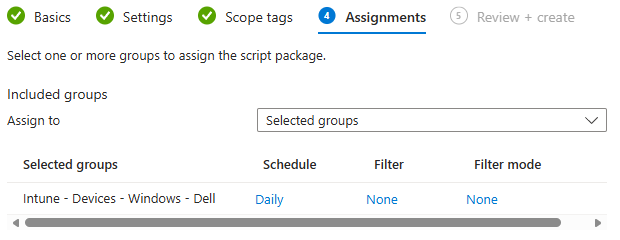
3. Assign and schedule. Assign the remediation to a device group and set a schedule.
Detection and remediation: two different jobs
The two scripts have different responsibilities:
- Detection reads and reports. It reads the HKLM marker and asks the BIOS one read-only question: is a password currently set? It never attempts an unlock. This is a hard safety rule: every failed unlock attempt counts against the firmware lockout counter, and a detection script that guessed passwords on every cycle across a fleet would risk mass lockouts. Detection’s job is purely to classify and report.
- Remediation acts. When the detection reports non-compliant, Intune runs the remediation, which decrypts the right password version, unlocks the BIOS if needed, and applies the change.
Each script’s last action is a single status line written to standard out, and the exit code follows from it:
| Script | Output | Exit | Meaning to Intune |
|---|---|---|---|
| Detection | COMPLIANT: … | 0 | Compliant - don’t remediate. |
| Detection | NONCOMPLIANT: … / DEGRADED: … | 1 | Not compliant - run the remediation. |
| Remediation | REMEDIATED: … / SKIPPED: … | 0 | Success (changed, or nothing to do). |
| Remediation | FAILED: … / DEGRADED: … | 1 | Something went wrong. |
out-of-scope (the script ran on a different manufacturer) maps to compliant/skipped and exit 0, so a remediation assigned too broadly doesn’t report false failures.
The script logic
The remediation’s behavior comes from comparing three things: the target version, the marker (what the device thinks it’s at), and whether the BIOS reports a password set. Those combinations map to a handful of actions:
| Marker | BIOS password | Action | Example output |
|---|---|---|---|
| missing | not set | Set the initial password | REMEDIATED: pw set v=5 |
| = target | set | Compliant - nothing to do | SKIPPED: pw v=5 already current |
| = target | not set | Reapply (BIOS reset detected) | REMEDIATED: pw reapplied v=5 |
| < target | set | Rotate - unlock with the marker version, set target | REMEDIATED: pw rotated v=3->v=5 |
| missing | set | Drift - use the fallback list to unlock, then set target | REMEDIATED: pw rotated v=4->v=5 via fallback (marker was missing) |
| > target | set | Misconfigured - refuse (no rollback) | FAILED: pw misconfigured marker v=7 > target v=5 |
| target = 0 | set | Clear - unlock and clear the password | REMEDIATED: pw cleared (used v=3 to unlock) |
Two of these outcomes fail by design. Misconfigured (marker version higher than the target) refuses rather than guessing a rollback. The other is unrecoverable drift: the marker is missing and none of the password versions in the payload can unlock the BIOS. In this case, the device has drifted further than the rolling window can reach, so it reports FAILED: pw drifted - no fallback password unlocked the BIOS and surfaces in the console for manual attention.
The script changes the BIOS, verifies by re-reading, and only then writes the marker. If a BIOS write fails, the marker is not advanced, so the next cycle re-classifies and the fallback list catches it. The device can never end up with a marker that claims a version the BIOS didn’t actually take.
Rotating the password
Rotation is the day-to-day workflow. Here is an example of updating devices from version 5 to version 6:
- Encrypt the new password as the next version (
pw-v6.cms), as covered in the certificate post. - Rebuild the remediation payload with the new rolling window (for a window of three, that’s versions 4, 5, and 6). Devices still on 4 or 5 can unlock themselves and roll forward; the older versions age out of the window.
- Set
TargetVersion = 6in both the detection and remediation scripts. - Update the remediation in Intune with the rebuilt scripts.
On the next cycle, a device at v5 detects marker-version-drift expected=6, the remediation unlocks with v5 and sets v6, and it reports REMEDIATED: pw rotated v=5->v=6. A device that missed the previous rollout and is still at v4 follows the same process, using the v4 password.
Note
The window size is a trade-off. A wider window (more versions in the payload) lets devices that are further behind recover on their own, at the cost of a slightly larger script and more historical passwords embedded in it.
Clearing the password
Clearing uses the same logic with the target set to zero. Set TargetVersion = 0 in both scripts and redeploy. Detection on a device that still has a password reports NONCOMPLIANT: pw v=5 set=true marker-needs-clear expected=0, and the remediation unlocks and clears it, reporting REMEDIATED: pw cleared (used v=5 to unlock).
Important
Clearing still requires the password. The remediation has to unlock the BIOS before it can clear it, so the payload must still contain the CMS version that is currently on the device. Don’t strip the password versions out of the payload when you switch the target to 0.
Recovery and the fallback list
When the marker is missing but the BIOS still has a password (a re-imaged device, a wiped registry, a marker that never got written) the remediation doesn’t give up. It goes to the fallback list: the versions in the payload, newest first, trying each one to unlock the BIOS. The first that works is used to roll the device to the target, and it reports … via fallback (marker was missing).
A device further behind than the window can reach reports FAILED: pw drifted - no fallback password unlocked the BIOS, where it’s visible in the console for an admin to handle, rather than silently churning the lockout counter.
Manufacturer differences
Most of the script logic is identical across Dell, HP, and Lenovo. There are a few differences.
HP Sure Admin. On an HP device enrolled in Sure Admin (Enhanced BIOS Authentication Mode), the BIOS no longer accepts a password, it requires signed commands which these scripts don’t support. The scripts detect this and exit. Detection reports NONCOMPLIANT: pw sure-admin-enrolled (INCOMPATIBLE - signed payloads required). Remediation reports SKIPPED: pw sure-admin-incompatible (signed payloads required) and exits cleanly so Intune doesn’t retry it forever.
Lenovo initial password set. On Lenovo, setting the initial supervisor password on a device that has none isn’t supported. Lenovo firmware requires the System Deployment Boot Mode workflow for that. A Lenovo device with no password reports FAILED: pw init-not-supported-v1 (initial supervisor set requires SDBM). Rotation and clearing on devices that already have a supervisor password work normally. Lenovo devices using BIOS certificate authentication are treated like HP Sure Admin, detected as cert-auth-enabled and reported incompatible.
Lenovo ThinkCentre and ThinkStation. Lenovo desktops and workstations need the current supervisor password supplied through the WmiOpcodePasswordAdmin opcode before a password change. The Lenovo remediation script checks the form factor (Win32_ComputerSystem.PCSystemType) and adds the step on desktops only. If that query fails it falls back to the ThinkPad sequence.
Reporting
The single-line output format exists so the results are easy to scan. In the Intune console, under Devices > Scripts and remediations, the remediation’s per-device output appears in its device-status view, and the leading tag (COMPLIANT / NONCOMPLIANT / REMEDIATED / SKIPPED / FAILED / DEGRADED) tells you the state at a glance.

For a deeper dive into the reporting capabilities of the scripts (including integration with Azure Log Analytics) see Reporting on BIOS management with Intune.