This post was updated on May 25th, 2026 and covers script version 2.3.0.
This script is now available in two variants. This post covers the WMI-based variant (Manage-HPBiosPasswords-WMI.ps1), which talks directly to the HP WMI interface and has no module dependencies. There is also a variant built on the HP Client Management Script Library: HP BIOS Password Management (HPCMSL).
In my last blog post, (Lenovo BIOS Password Management), I talked about managing Lenovo BIOS passwords with PowerShell. I liked how that process worked, so I decided to create a similar process to handle HP BIOS passwords. Once again, the goal was to have a script that could automatically set, change, or clear BIOS passwords while providing logging and optional user prompts. In this post, I’ll cover the basics of how the script works and some limitations of the script.
The script can be downloaded from my GitHub. https://github.com/ConfigJon/Firmware-Management/tree/master/HP
This post is part of the v2 update to my BIOS management scripts. For an overview of everything that changed across the Dell, HP, and Lenovo scripts, see BIOS Management Scripts v2 Released.
HP, WMI, and PowerShell
HP provides a WMI interface that can be used for querying and modifying BIOS settings on their hardware models. This means that PowerShell can be used to directly view and edit BIOS settings without the need for a vendor specific program. This script deals specifically with HP BIOS passwords, so in this post, I will only be discussing the classes related to password management. The examples below use the CIM cmdlets (Get-CimInstance and Invoke-CimMethod) rather than the older Get-WmiObject, so they work in both Windows PowerShell 5.1 and PowerShell 7.
The first thing that needs to be done is to determine what passwords are currently configured. This information can be obtained from the HP_BIOSSetting WMI class under the root/hp/InstrumentedBIOS WMI namespace.
#Connect to the HP_BIOSSetting WMI class
$HPBiosSetting = Get-CimInstance -Namespace root\hp\InstrumentedBIOS -ClassName HP_BIOSSetting

#Check the status of the setup password
($HPBiosSetting | Where-Object Name -eq "Setup Password").IsSet

#Check the status of the power-On password
($HPBiosSetting | Where-Object Name -eq "Power-On Password").IsSet
Checking the status of the passwords will return either a 0 or a 1.
- 0 - No password set
- 1 - Password set
The next step is to action on this data and set, change, or clear the BIOS password. This can be done using the HP_BIOSSettingInterface WMI class under the root/hp/InstrumentedBIOS WMI namespace.
#Connect to the HP_BIOSSettingInterface WMI class
$Interface = Get-CimInstance -Namespace root\hp\InstrumentedBIOS -ClassName HP_BIOSSettingInterface

#Set a new setup password
Invoke-CimMethod -InputObject $Interface -MethodName SetBIOSSetting -Arguments @{Name="Setup Password"; Value=("<utf-16/>" + "NewPassword"); Password="<utf-16/>"}

#Change an existing setup password
Invoke-CimMethod -InputObject $Interface -MethodName SetBIOSSetting -Arguments @{Name="Setup Password"; Value=("<utf-16/>" + "NewPassword"); Password=("<utf-16/>" + "OldPassword")}

#Clear an existing setup password
Invoke-CimMethod -InputObject $Interface -MethodName SetBIOSSetting -Arguments @{Name="Setup Password"; Value="<utf-16/>"; Password=("<utf-16/>" + "OldPassword")}
The HP_BIOSSettingInterface WMI class contains a method called SetBIOSSetting. This method allows for changing HP BIOS settings. In this case, the “Setup Password” setting is being changed. The method takes three arguments: Name (the setting being changed), Value (the new password), and Password (the current password used to authorize the change). Additionally, when specifying the password values, the encoding of the passwords must also be specified. This is done by adding <utf-16/> in front of the password. This encoding must be specified even when the password value is blank (look at the password set or password clear examples).
When the method is called with Invoke-CimMethod, the result object exposes the same Return code that the old Get-WmiObject dot-notation call returned.
For reference, these are the possible return codes for the SetBIOSSetting method:
- 0 - Success
- 1 - Not Supported
- 2 - Unspecified Error
- 3 - Timeout
- 4 - Failed (Usually caused by a typo in the setting value)
- 5 - Invalid Parameter
- 6 - Access Denied (Usually caused by an incorrect BIOS password)
For more detailed information on the HP WMI interface, refer to the official documentation: http://h20331.www2.hp.com/Hpsub/downloads/cmi_whitepaper.pdf
Manage-HPBiosPasswords-WMI.ps1
This script takes these basic commands and adds logic to allow for a more automated password management process. The script accepts parameters that tell it which actions to perform.
- SetupSet - Set a new setup password or change an existing setup password
- SetupClear – Clear an existing setup password
- PowerOnSet - Set a new power on password or change an existing power on password. HP firmware requires a setup password to manage the power on password, so a setup password must already be set, or be set in the same run with SetupSet
- PowerOnClear – Clear an existing power on password. When a setup password is set, it authorizes the clear; when no setup password is set, also specify the OldPowerOnPassword parameter
There are also parameters that are used to specify the new and old BIOS passwords.
- SetupPassword – The current setup password or password to be set
- OldSetupPassword – The old setup password(s) to be changed. Multiple old passwords can be specified (separated by a comma). See the Limitations section of this post for more information.
- PowerOnPassword – The current power on password or password to be set
- OldPowerOnPassword – The old power on password(s) to be changed. Multiple old passwords can be specified (separated by a comma). See the Limitations section of this post for more information.
Note
Each of these password parameters also has a matching CMS parameter (for example,
-SetupPasswordCmsFile) that reads the password from an encrypted file instead of from the command line. See the Securing the BIOS Password section at the bottom of this post for more information.
By default, if the script fails to perform any of these actions, it will display a message box on the screen and exit with an error code. This can be useful in a task sequence scenario where you may not want a system to continue with the task sequence if the BIOS password is not set correctly. However, if you want the script to be completely silent, there are a few parameters that can be set.
- NoUserPrompt – Suppress all user prompts
- ContinueOnError – Ignore any errors caused by changing or clearing passwords
When the script runs, it will write to a log file. By default, this log file will be named Manage-HPBiosPasswords-WMI.log. If the script is being run during a task sequence, the log file will be located in the _SMSTSLogPath. Otherwise, the log file will be located in ProgramData\ConfigJonScripts\HP. The log file name and path can be changed using the LogFile parameter. Note that the log file path will always be set to _SMSTSLogPath when run during a task sequence.
Limitations and Known Issues
Password Lockout
This limitation is imposed by HP for security reasons. If enough wrong password attempts are made, the system will lock and require a reboot to continue attempting passwords. I’ve tested a few different HP models, and they all seem to lock after 3 failed password attempts.
Even though the lockout number is 3, the way this script is written, you can only specify 2 old passwords in the old password parameters. This is because the script first tests if the password is already set to the value passed in the new password parameters, which eats up 1 of those lockout attempts if incorrect.
For example, if the script is instructed to change a setup password, the first thing it does, is test the current password against the value passed in the SetupPassword parameter. If it does not match, this counts as 1 failed attempt. The script then attempts to change the password to the values passed in the OldSetupPassword parameter. However, since the script is already at 1 failed attempt after the first test, only 2 more password attempts can be made before needing a reboot.
If this script is being run during a task sequence, and there are 4 different potential old passwords, and the device locks after 3 failed attempts, the script would need to be called with Password1 and Password2 specified as old passwords. Then a reboot would need to happen. Then the script would need to be run a second time with Password3 and Password4 specified as old passwords.
There is a check in the parameter validation section of the script that will throw an error if 2 or more old passwords are specified. If you need to increase this limit, either comment out or modify those lines.
Setup and Power-On Passwords
HP firmware uses the setup (BIOS administrator) password as the authority for managing the power on password. A setup password must already be set, or be set in the same run with SetupSet, before a power on password can be set. When a setup password is present, it also authorizes changing or clearing the power on password, so the OldPowerOnPassword parameter is only needed on systems that have no setup password set. The script can also clear both passwords in a single run; in that case it clears the power on password first (authorized by the setup password) and then clears the setup password.
HP Sure Admin
On modern HP commercial systems, Sure Admin (Enhanced BIOS Authentication Mode) can replace the BIOS password with a cryptographically signed authorization. BIOS changes on these devices require a signed payload or a local access key rather than a password, which this script does not perform. Starting with version 2.2.0, the script detects when Sure Admin is enabled, logs a clear message, and exits cleanly without attempting any password actions. Managing Sure Admin enabled devices requires HP’s Sure Admin tooling.
Examples
The script can be run as a standalone script in Windows, or as a part of a Configuration Manager task sequence. It can also be run in the full Windows OS or in WinPE.
Here are a few examples of calling the script from a PowerShell prompt in Windows.
Set a new setup password
Manage-HPBiosPasswords-WMI.ps1 -SetupSet -SetupPassword <String>

Set or change a setup password
Manage-HPBiosPasswords-WMI.ps1 -SetupSet -SetupPassword <String> -OldSetupPassword <String1>,<String2>

Clear an existing setup password
Manage-HPBiosPasswords-WMI.ps1 -SetupClear -OldSetupPassword <String1>,<String2>

Set a setup password and a power on password in the same run
Manage-HPBiosPasswords-WMI.ps1 -SetupSet -PowerOnSet -SetupPassword <String> -PowerOnPassword <String>

Set or change a power on password when the setup password is already set
Manage-HPBiosPasswords-WMI.ps1 -PowerOnSet -PowerOnPassword <String> -SetupPassword <String>

Change a setup password and clear a power on password
Manage-HPBiosPasswords-WMI.ps1 -SetupSet -SetupPassword <String> -OldSetupPassword <String1>,<String2> -PowerOnClear

Clear a power on password when the setup password is set
Manage-HPBiosPasswords-WMI.ps1 -PowerOnClear -SetupPassword <String>

Clear both the setup and power on passwords in a single run
Manage-HPBiosPasswords-WMI.ps1 -SetupClear -OldSetupPassword <String1>,<String2> -PowerOnClear

Set a new setup password sourced from a CMS-encrypted file
Manage-HPBiosPasswords-WMI.ps1 -SetupSet -SetupPasswordCmsFile <String>
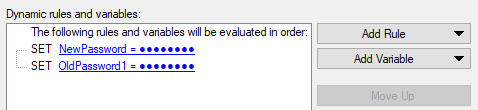
Here is a basic example of calling the script during a task sequence. This is likely one of the most common ways the script would be called in a task sequence. In this example the setup password will be set if it doesn’t exist, and it will be changed if it does already exist.
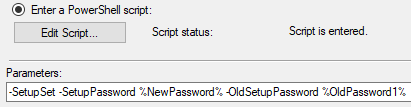
-SetupSet -SetupPassword %NewPassword% -OldSetupPassword %OldPassword1%
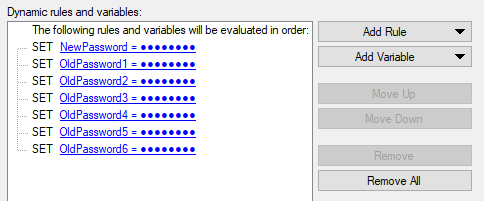
Here is a second example of calling the script during a task sequence. In this example, the setup password is being set or changed and there are 6 possible old setup passwords. The hardware the script is being run against will lock after 3 failed attempts, so only 2 old passwords can be specified before a reboot is required. This means that the script will need to be run 3 times.
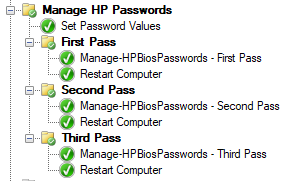
First in the Set Password Values step, create variables for each password.
The First Pass folder has no conditions on it; it should run for any HP system. To set a new setup password or change an existing setup password, the SetupSet parameter is specified along with the SetupPassword and OldSetupPassword parameters.
Because the script will need to run multiple times, there is one additional parameter that needs to be specified. The SMSTSPasswordRetry parameter instructs the script to not display prompts to the screen until all attempts have completed. In this scenario, the script needs to be run 3 times, so SMSTSPasswordRetry parameter is specified on the first 2 passes of the script and not on the final pass. When the password(s) are successfully changed or cleared, the SMSTSPasswordRetry variable will be set to false. This means that if the first pass of the script is successful, the second and third passes of the script will be skipped.

-SetupSet -SetupPassword %NewPassword% -OldSetupPassword %OldPassword1%,%OldPassword2% -SMSTSPasswordRetry
When the script runs during a task sequence, it will create task sequence variables to track the success or failure of each different script action. If any one of the password actions fails, the associated task sequence variable will be set to Failed.
- HPSetSetup
- HPClearSetup
- HPSetPowerOn
- HPClearPowerOn
As I mentioned before, the first run of the script in the task sequence does not have any conditions, but each successive run of the script should have these conditions.
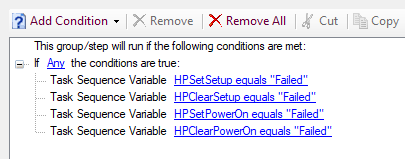
The second pass of the script. Notice the SMSTSPasswordRetry parameter is specified because there is still another potential pass of the script yet to run.

-SetupSet -SetupPassword %NewPassword% -OldSetupPassword %OldPassword3%,%OldPassword4% -SMSTSPasswordRetry
The third pass of the script. Notice the SMSTSPasswordRetry parameter is not set because this is the final pass of the script.
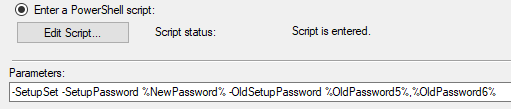
-SetupSet -SetupPassword %NewPassword% -OldSetupPassword %OldPassword5%,%OldPassword6%
If at the end of the 3 passes of the script, the password was still not successfully changed, a message would then be prompted on the screen informing the imaging technician.
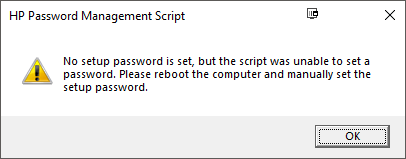
The end result of all of this is a script that can be used to change or clear HP BIOS passwords. The script can be run in a task sequence and persist information across multiple reboots. This allows for the user to be correctly prompted about any required manual actions even if there are many old passwords to test.
Securing the BIOS Password
This script takes the BIOS password as a plain-text parameter. As of version 2.3.0 it can also read the password from a CMS-encrypted file using a matching CMS-file parameter (for example, -SetupPasswordCmsFile), so the password is never passed on the command line. For a full walkthrough of encrypting the password and deploying it safely in unattended deployments, see Securing BIOS Passwords.
Additional Reading
If you’re looking to configure HP BIOS settings other than just the passwords, check out these links. HP BIOS Settings Management, HP BIOS Configuration Utility, and HP Client Management Script Library.