My Dell, HP, and Lenovo BIOS password and settings scripts have primarily been built for use with traditional device management tools like Microsoft Configuration Manager. This post introduces a new set of scripts designed specifically for Intune. These scripts are designed around the Intune Remediations feature. The goal is to manage BIOS passwords and settings continuously, with no module dependencies, and no plain-text passwords.
The scripts can be downloaded from my GitHub. https://github.com/ConfigJon/Firmware-Management
This is the hub for the Intune series. It covers the overall design and how the pieces fit together. The deep-dive posts linked below walk through certificates, password management, and settings management in detail.
Why a separate set of scripts?
The existing scripts are designed around the use of Configuration Manager task sequences. The scripts assume that the password can be obfuscated in a task sequence variable. Intune changes all of this:
- There is no task sequence. Intune runs a remediation on a recurring schedule for the life of the device, not once during a build. The script has to be safe to run over and over, decide for itself whether any work is needed, and report a clean compliant/non-compliant result every time.
- No plain-text passwords. The password can never appear on a command line or in a log, which rules out the plain-text parameter path the task-sequence scripts allow.
- State has to live on the device. A task sequence knows the password version it is deploying. A recurring remediation has to figure that out on its own, every cycle, with nothing but what the BIOS and the device itself can tell it.
Rather than bolt this onto the existing scripts and compromise both use cases, the Intune scripts are their own family. They share the look and feel of the originals, but the delivery model, the state tracking, and the security model are built for Intune from the ground up.
How it works
Detection + remediation pairs. Each solution is a pair of scripts deployed as a single Intune remediation: a detection script that reports whether the device is in the desired state, and a remediation script that brings it there if it is not. There are two pairs per manufacturer (passwords and settings), twelve scripts in total across Dell, HP, and Lenovo.
The detection script never makes changes, and never tries to unlock the BIOS. It reads the current state and reports it. Every failed BIOS unlock attempt counts against the firmware lockout counter, and a detection script that guessed passwords on every cycle across a fleet would likely result in many locked devices.
Single-line, machine-readable output. Every run prints one tagged status line as its last action. This output is visible in the Intune admin center:
COMPLIANT: pw v=5 set=true marker-ok
NONCOMPLIANT: pw v=3 set=true marker-version-drift expected=5
NONCOMPLIANT: pw v=- set=false marker-missing
SKIPPED: pw cert-auth-incompatible (signed payloads required)
REMEDIATED: pw rotated v=3->v=5

A rolling version window. Passwords are versioned with a simple integer. The remediation carries a small rolling window of recent password versions as encrypted payloads. This allows a device that is a version or two behind to update. A device with a lost marker has a few recent password options to attempt to recover. Setting the target to version 0 is the convention for clearing the password.
Build and deploy the scripts
The Intune scripts build on the CMS encryption foundation shared with the task-sequence scripts. If you’re new to document-encryption certificates and CMS, start with the Securing BIOS Passwords series, then come back here for the Intune-specific delivery.
At a high level, deploying the solution looks like this:
- Create and export a document-encryption certificate - a
.cerfor encrypting passwords and a.pfx(with private key) for devices. (See Document Encryption Certificates for BIOS Password Management.) - Deploy the certificate’s private key to devices as a platform script or Win32 app so it lands in the machine store. (See Setting up BIOS password certificates in Intune.)
- Encrypt each BIOS password version to a
.cmsfile with the public certificate. - Build the remediation payload by embedding the
.cmsfiles into the remediation script withBuild-IntunePayload.ps1. - Deploy the password remediation - set
TargetVersion, then upload the detection and remediation pair as an Intune remediation. (See BIOS password management with Intune Remediations.) - Deploy the settings remediation - define
$DesiredSettings, then upload its detection and remediation pair. (See BIOS settings management with Intune Remediations.)
Steps 1-4 are prerequisites that have to be in place before anything is enforced. Steps 5 and 6 are independent: you can deploy password management, settings management, or both. Continue reading through this series of posts to learn about each of these steps in detail.
Delivering the password safely
Because there is no operator and no task sequence, the Intune scripts require the password to be delivered as encrypted material. There is no plain-text option. The mechanism is the same CMS encryption used by the task-sequence scripts’ -…CmsFile parameters, adapted for Intune:
- The password is encrypted to a document-encryption certificate with
Protect-CmsMessage, producing a.cmsfile that only the matching private key can decrypt. - That certificate’s private key is delivered to devices with an Intune script (a platform script or Win32 app that imports the
.pfx), landing inCert:\LocalMachine\Mywith a non-exportable private key. - The encrypted password files are embedded as base64 inside the remediation script using the included
Build-IntunePayload.ps1script, so the remediation is self-contained. - At runtime the remediation decrypts the payload in memory using the device’s certificate. The password never touches the command line, the registry, or the log.
Important
CMS encryption is a requirement for the Intune scripts. The certificate-and-CMS workflow is the only supported way to get a password to them. The full certificate setup is covered in its own post, linked below.
The registry footprint
A recurring remediation has to remember what it has done between runs, because the BIOS can only tell it whether a password is set, not which version. The scripts bridge that gap with a small set of registry markers under HKLM:\SOFTWARE\ConfigJonScripts\FirmwareManagement\: a BIOSPassword key for the password version and certificate thumbprint, a BIOSSettings key for the settings profile and desired-state hash, and one subkey per managed setting so each one is tracked independently.
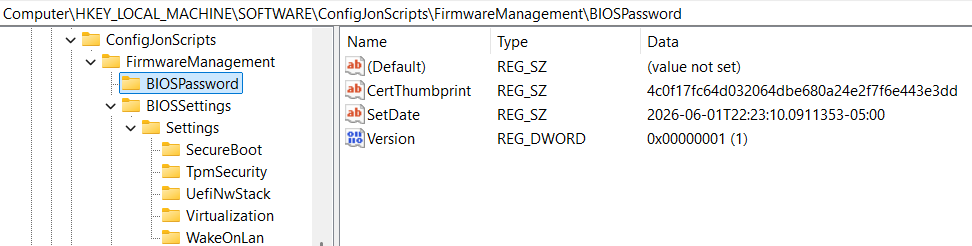
Note
These keys are for record keeping only. They log what the scripts have done and what they intend to do; they never contain a password or any decrypted material. If you ever need to force a device to start fresh, deleting the relevant key is safe; the next detection cycle will rebuild it.
The full marker layout (every value, its type, and what it’s for) is in the reference and troubleshooting post.
Intune scripts or the task-sequence scripts?
Both types are supported, and they are not in competition. Use whichever matches how the device is managed:
- Use the Intune scripts when devices are Intune-managed and you want BIOS password and settings state enforced continuously, with per-device reporting in the Intune console. They expect the CMS-and-certificate model and run as recurring remediations.
- Use the original task-sequence scripts when you manage BIOS as a one-time step during ConfigMgr/MDT imaging, or when you want to run them interactively. Those scripts keep their plain-text and
-…CmsFileparameters and their full per-vendor feature sets.
Manufacturer support
| Manufacturer | Passwords | Notes |
|---|---|---|
| Dell | Set, rotate, clear | Full lifecycle, including setting the initial password on a device that has none. |
| HP | Set, rotate, clear | Full lifecycle. Devices enrolled in HP Sure Admin are detected and reported as incompatible rather than silently passed, since they require signed payloads instead of a password. |
| Lenovo | Rotate, clear | Rotation and clearing are fully supported. Setting the initial supervisor password on a device that has none is not supported here. Lenovo firmware requires the System Deployment Boot Mode workflow for that. Devices using Lenovo BIOS certificate authentication are detected and reported as incompatible. |
Settings management is supported on all three manufacturers, using the same desired-state-and-marker model described above. The settings scripts assume a BIOS password by default, but organizations that run with no BIOS password can opt out with the settings scripts’ -NoPassword switch. See the settings deep dive for details.
Note
On HP Sure Admin and Lenovo certificate-authentication devices, the scripts do not attempt to manage the BIOS. The detection script reports the device as non-compliant and incompatible so it is visible in the console, and the remediation exits cleanly so Intune does not retry it forever. These devices need specific signed-payload tooling, which these scripts do not perform.
Beyond this release
A few topics are intentionally out of scope for this first release and may become their own posts later: storing BIOS passwords in Azure Key Vault, setting the initial Lenovo supervisor password through System Deployment Boot Mode, Intune variants built on DellBIOSProvider and HPCMSL, and management of HP Sure Admin and Lenovo certificate authentication.